

Leaving a CRM is not as simple as signing up for a new one. Without a structured exit strategy, businesses risk data loss, workflow disruption, and costly downtime. The good news: a well-planned CRM migration takes most small businesses four to twelve weeks and can be executed without losing a single contact record.
Switching CRM platforms is one of the most consequential operational decisions a business can make. Your CRM is the nerve centre of your client relationships, pipeline, billing history, and communications. Migrating it carelessly is the business equivalent of moving offices without packing — you’ll arrive at the destination missing half of what you need.
This guide gives you a practical, step-by-step CRM exit strategy: how to audit and extract your data, how to map it to a new system, how to manage the transition without disrupting your team, and how to select a CRM that won’t put you through this process again in eighteen months.
Why Teams Leave Their Current CRM
The decision to switch CRMs rarely comes out of nowhere. It usually follows a long period of workarounds, frustration, and growing costs. Understanding why businesses leave helps clarify what a better next choice looks like.
Research from CRM Switch identifies the most common reasons companies abandon their current platform:
- Missing automation: Teams are spending time on repetitive tasks the CRM should be handling — follow-up reminders, status updates, email sequences.
- Limited reporting: The system can’t produce the reports management actually needs, requiring manual spreadsheet work to fill the gaps.
- Low user adoption: The CRM is too complex, too slow, or too poorly designed for the team to use consistently — which makes the data unreliable.
- Lack of integrations: The platform doesn’t connect with the other tools the business depends on, creating data silos and manual re-entry work.
- Communication silos: Client communication happens across email, phone, and project tools, but the CRM doesn’t pull it together in one place.
- Business growth: The company has outgrown a starter CRM, or the team size has pushed per-seat pricing to unsustainable levels.
- Poor vendor support: When things break or features are needed, the vendor is unresponsive — or the answer is always “that’s on our roadmap.”
A study cited by Workbooks found that over 40% of businesses abandoned their previous CRM due to a lack of necessary features. And yet the same research found that 55% of businesses said they wouldn’t switch — specifically because of concerns about disruption to staff. That tension between needing to leave and fearing the process is exactly what a good exit strategy resolves.
Recognising It’s Time to Leave Your Current CRM
Many businesses stay in bad-fit CRMs far longer than they should because the friction of switching feels worse than the friction of staying. Here are the clearest signs that the cost of staying now exceeds the cost of migrating:
Your Team Has Stopped Using It Consistently
If your team is maintaining parallel spreadsheets, keeping notes in their email, or simply not logging activity because the CRM is too slow or confusing, the data in your CRM is already compromised. A CRM that isn’t being used reliably isn’t actually functioning as a CRM — it’s just a database with outdated records.
You’re Paying for Features You Don’t Use and Missing Ones You Need
Modern CRM platforms have grown bloated. If you’re paying for a complex enterprise platform but only using contact management and email logging, the mismatch is costing you money. Conversely, if you’re constantly requesting features your vendor hasn’t shipped, you’re subsidising a roadmap that doesn’t serve you.
Your Costs Are Increasing Faster Than Your Business Is
Per-seat SaaS pricing means that every new hire adds to your monthly bill. When a growing team drives CRM costs up 40–60% in a year with no corresponding improvement in value, the economics of staying don’t add up. This is particularly acute for businesses with large teams or frequent staff changes.
You Can’t Get Your Data Out Easily
If you’ve tried to run a comprehensive data export and found the output incomplete, poorly formatted, or dependent on expensive add-ons, you’re experiencing vendor lock-in by design. The fact that leaving is difficult is a strategy — not an accident. That’s a strong signal to leave before it becomes even harder.
Your Business Has Changed Shape
A CRM built for a five-person sales team doesn’t serve a thirty-person service business. A tool designed for B2C e-commerce doesn’t serve a B2B professional services firm. When your business model, team structure, or client base has meaningfully evolved, it’s worth revisiting whether your CRM still fits — rather than forcing new workflows into old containers.
Your CRM Exit Planning Timeline
Migration timelines vary by data volume and complexity. Most small businesses complete a CRM migration in six to twelve weeks. Organisations with under 50,000 records typically complete simple migrations in four to six weeks. Larger migrations with complex integrations can run to three months or more.
The key is not rushing the process to meet an arbitrary deadline. Rushing a CRM migration is the single most common cause of data loss and failed adoptions. Work backwards from a realistic go-live date and protect the early phases — data audit and cleaning — from being compressed.
Weeks 1–2: Audit and Decision
Inventory your current CRM data. Document what you have: contacts, companies, deals, tasks, notes, attachments, email history, invoices, and custom fields. Identify what you need to migrate and what can be archived or discarded. Select your new CRM platform during this phase.
Weeks 2–3: Data Cleaning
Before migrating, clean the data. Remove duplicates, correct formatting inconsistencies, and standardise field values. Migrating dirty data just moves the problem — it doesn’t solve it. This is also the time to decide which historical records are worth migrating versus archiving.
Weeks 3–4: Field Mapping and Setup
Map data fields from your old CRM to your new one. Understand which fields have direct equivalents, which need to be combined or split, and which require new custom fields to be created in the destination system. Set up your new CRM configuration before importing any data.
Week 4: Full Backup and Test Migration
Take a complete export of your current CRM data. Do not proceed to a test migration without a verified backup stored in a separate location. Run a test migration with a subset of your data — 10 to 15% of records — and validate the output manually before proceeding to a full import.
Weeks 5–6: Team Training
Train your team on the new platform before go-live. Use a staging environment with real migrated data so training is grounded in the actual workflow. Document the key processes: how to add a contact, log a note, create an invoice, track a project. Keep documentation brief and practical.
Week 6–7: Go Live and Parallel Running
Go live on the new system. Run both systems in parallel for one to two weeks — new data goes into the new CRM, while the old system remains read-only for reference. This is your safety net. Set a hard shutdown date for the old CRM at the start of this phase.
Week 8+: Old System Shutdown
Shut down the old CRM on the pre-announced date. Do not extend the parallel period indefinitely — a hard shutdown forces complete adoption and eliminates the split-attention problem. Archive a final data export from the old system before cancelling the subscription.
Data Extraction Strategies by Platform
The mechanics of extracting your data depend on which CRM you’re leaving. Here’s what to expect from the most common platforms, and what Whatfix’s CRM data migration guide identifies as the core extraction requirements for any migration.
Leaving Salesforce
Salesforce offers robust export functionality, but it takes some navigation to find everything. Use the Data Export Service (Setup → Data Management → Data Export) to export all standard and custom objects as CSV files. For complete exports including attachments and Chatter posts, use the Data Loader tool. Note that Salesforce limits scheduled exports to weekly or monthly intervals — if you need a same-day export, use Data Loader directly.
Pay particular attention to relationship fields: Salesforce stores relationships between records using IDs, so your contacts will reference Account IDs, and your opportunities will reference Contact IDs. Your migration tool will need to resolve these relationships in the correct order.
Leaving HubSpot
HubSpot’s export functionality is relatively straightforward. Navigate to your CRM objects (Contacts, Companies, Deals, Tickets) and use the Export function to generate CSV files. HubSpot includes most standard properties by default; custom properties can be included by selecting them before export.
Note that HubSpot’s free and starter tiers limit export functionality. If you’re on a paid plan, use the export from the main object views rather than individual record exports. Email sequences, workflows, and marketing data require separate exports from their respective modules.
Leaving Zoho CRM
Zoho CRM allows module-by-module exports from Settings → Data Administration → Export. Each module (Leads, Contacts, Accounts, Deals, etc.) exports to a separate CSV file. Zoho limits exports to 3,000 records per CSV in some configurations — for larger datasets, filter your export into segments or use the API.
Zoho’s attachment files (documents uploaded to records) are not included in standard CSV exports and must be downloaded separately from each record or accessed via the API.
Platform-Agnostic Export Essentials
Regardless of which CRM you’re leaving, the NewBreed Revenue CRM migration checklist recommends exporting these core data categories:
- Contacts (with all custom fields)
- Companies / Accounts
- Deals / Opportunities / Pipeline data
- Notes and activity history
- Tasks and follow-up reminders
- Email history (if stored in CRM)
- Documents and file attachments
- Invoices and financial records
- Custom fields and their values
- Tags and segmentation data
Your CRM Migration Project Plan
A migration is a project, not a task. Treat it accordingly: assign an owner, define milestones, and track progress. Here is a step-by-step execution plan based on migration best practices from MigrateMyCRM and SugarCRM’s risk guidance.
Step 1: Assign a Migration Owner
Every migration needs a single accountable owner — someone who coordinates between teams, tracks progress, and makes decisions when ambiguities arise. This is not a committee responsibility. In a small business, this is typically an operations manager, office manager, or department head. In larger organisations, it may be a dedicated project manager or IT lead.
Step 2: Inventory Your Current Data
Before doing anything else, document exactly what you have. How many contacts? How many companies? How many open and closed deals? How many invoices? What custom fields have you created? What integrations are currently active? This inventory becomes your migration checklist — you’ll validate against it at the end to confirm nothing was lost.
Step 3: Clean Your Data Before Migrating
This step is non-negotiable and consistently under-resourced. Duplicates in your current system become double duplicates in a new system. Formatting inconsistencies — phone numbers in five different formats, countries spelled inconsistently — become import errors or data quality issues. Missing required fields cause import failures. A migration is the best opportunity you’ll have to clean your database. Take it.
Step 4: Map Your Fields
Create a spreadsheet that maps every field in your old CRM to its equivalent in the new system. Note where fields don’t have direct equivalents — these need decisions: Do you create a custom field in the new system? Do you combine multiple old fields into one new field? Do you discard the data? Field mapping decisions made here determine the data quality in your new system.
Step 5: Set Up the New CRM Before Migrating
Configure your new CRM — custom fields, pipelines, tags, user roles, automations — before you import any data. Importing data into an unconfigured system means you’ll need to restructure it afterwards, which risks introducing errors. Complete your setup, verify it with a small number of manually entered test records, then proceed to import.
Step 6: Run a Test Migration
Import a representative sample — around 10 to 15% of your records — and validate the results manually. Check that contact fields populated correctly. Verify that relationships between records are intact. Confirm that custom field values imported accurately. Identify and resolve any errors before running the full migration.
Step 7: Full Migration and Validation
Run the full migration. After completion, validate against your inventory from Step 2: total record counts, key custom fields, relationship integrity. Spot-check a random selection of records against the original system. Document any discrepancies and resolve them before go-live.
Step 8: Go Live with a Hard Shutdown Date
Set a specific date for shutting down the old CRM and communicate it to your team in advance. Running two CRMs in parallel indefinitely creates split attention, data duplication, and delayed adoption. A hard shutdown date makes the transition real and focuses effort on the new system.
Common CRM Migration Pitfalls
MigrateMyCRM documents twelve documented challenges that derail CRM migrations. The most damaging ones are preventable with planning:
Data Loss
Incomplete exports, failed imports, or missing relationship data. Prevention: full backup before any migration step, validated with record counts.
Data Quality Problems
Migrating dirty data amplifies existing issues. Duplicates, inconsistent formatting, and blank required fields cause downstream problems in the new system.
Semantic Mismatches
Field names that look the same but mean different things between systems. “Status” in one CRM might mean deal stage; in another it might mean contact type.
Data Corruption
Encoding issues, character set mismatches, or malformed CSV files corrupt records during import. Always use UTF-8 encoding and validate exports before importing.
Integration Failures
Existing integrations — email, accounting software, marketing tools — need to be reconnected in the new CRM. Not all integrations have equivalents, requiring alternative solutions.
Data Security Gaps
Data in transit during migration is a security exposure. Use encrypted transfer methods and avoid transmitting sensitive data through insecure channels like unencrypted email.
Extended Downtime
Migrations that take longer than expected leave teams without reliable CRM access. Parallel running during migration eliminates this risk.
Low User Adoption
The new CRM goes live but the team reverts to old habits. Prevention: involve team members in the selection process, train before go-live, and shut down the old system on schedule.
Unplanned Costs
Data migration services, integration rebuild costs, extended parallel licensing, and consultant fees add up quickly. Budget for these before committing to a migration timeline.
No Clear Rollback Plan
If the migration fails, what’s the fallback? A complete backup of the old system and a defined rollback procedure ensures you’re never stuck with no option.
Choosing Your Next CRM: What to Look For
The most important principle in selecting a replacement CRM is: choose for your next three years, not your next three months. A CRM migration is disruptive enough that you want to get it right and stay put.
Evaluate Against the Reasons You’re Leaving
Whatever drove you out of your current CRM, explicitly evaluate each candidate platform against those specific deficiencies. If user adoption was the problem, test the new system with actual team members before committing — not just decision-makers. If cost was the driver, model out total cost at your current team size and at twice your current team size.
Assess Total Cost of Ownership
The monthly subscription price is rarely the whole story. Factor in: per-user fees as your team grows, costs for features sold as add-ons, integration costs, storage limits and overage fees, and the cost of any professional migration services. SaaS pricing that looks affordable at sign-up can compound significantly over three to five years.
Verify Data Portability Before Signing Up
Before committing to any new CRM, test its data export functionality. Download your data in a format you can actually use. If exporting your data requires a support ticket or an enterprise upgrade, you’re evaluating a platform that will make the next migration just as painful as the current one.
Consider Ownership vs. Subscription
Many businesses switching CRMs move from one subscription platform to another without considering whether a one-time-purchase, self-hosted alternative might serve them better. For businesses that have been burned by price increases, vendor lock-in, or SaaS shutdowns, owning your CRM software outright — and running it on infrastructure you control — eliminates the structural risks that come with subscription platforms.
Why Grow CRM Is Worth Considering for Your Next Move
If recurring fees, per-seat pricing, and data control concerns played any role in your decision to leave your current CRM, Grow CRM offers a genuinely different model worth evaluating.
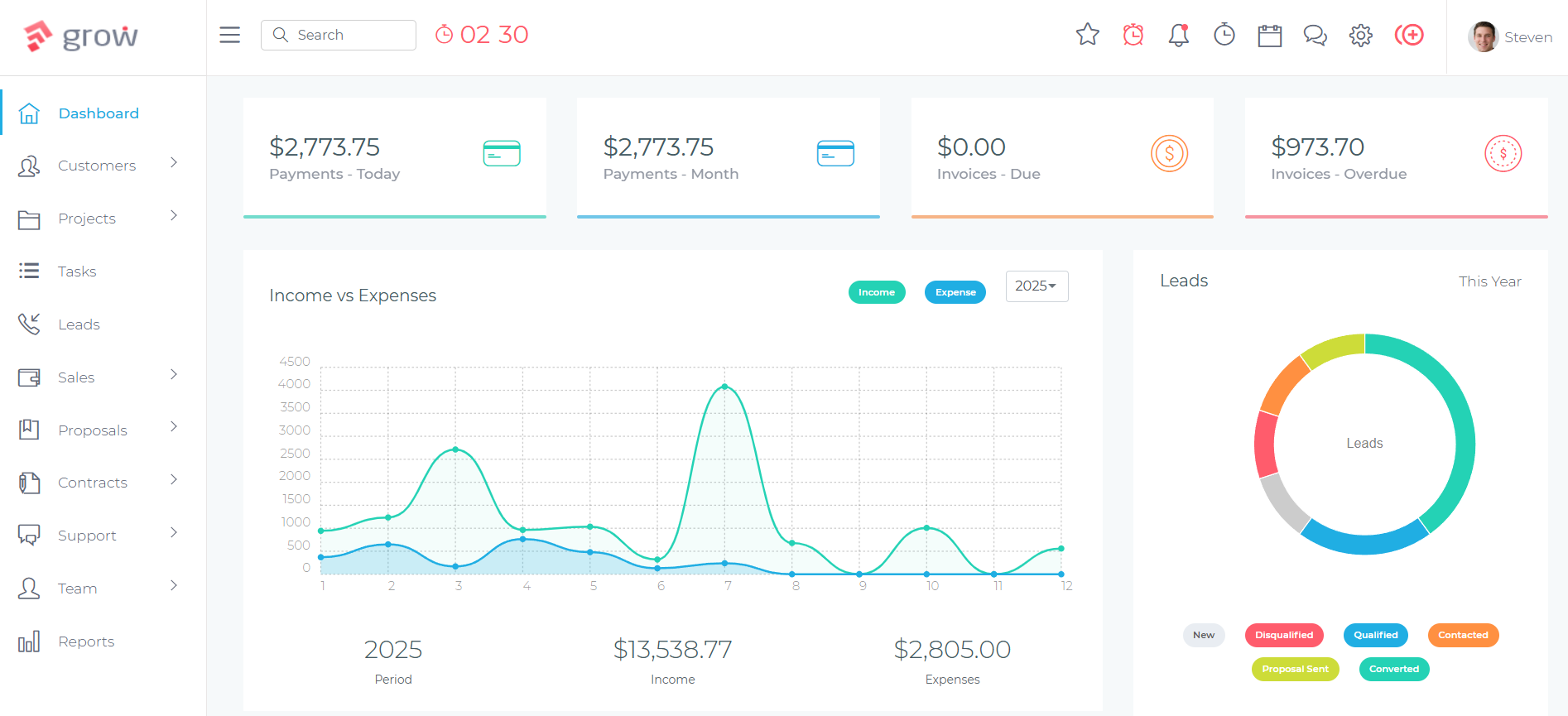
Grow CRM is a self-hosted CRM platform available for a $49 one-time payment. You install it on your own web server, and it runs under your control — no monthly fees, no per-user charges, no vendor access to your data. The $49 includes lifetime updates and free professional installation. You own the software outright.
The feature set covers the full operational stack that most service businesses need in a single platform:
- CRM: Contact management, lead tracking, client portal, pipeline management
- Project management: Tasks, milestones, Kanban boards, time tracking
- Invoicing and billing: Invoices, estimates, proposals, recurring billing, Stripe and PayPal payment processing
- Support: Helpdesk and support ticket system, knowledge base
- Collaboration: File sharing, internal messaging, workflow automation
- Localisation: 30 languages supported
- Users: Unlimited — no per-seat charges
For businesses leaving a fragmented stack of separate tools — a CRM plus a project management platform plus an invoicing tool — Grow CRM consolidates these into one self-hosted installation. The economic case is straightforward: if you’re paying $50–$200 per month across multiple tools, you recover the $49 investment in the first month.
The self-hosted model also resolves the data portability concern permanently. Your data lives on your server in a standard database. You can back it up, export it, or move it at any time. There is no vendor lock-in by design — because there’s no ongoing vendor relationship to be locked into.
Explore Grow CRM →Frequently Asked Questions: CRM Exit Strategy
How long does a CRM migration typically take?
Most small business CRM migrations take between four and twelve weeks from planning to full adoption. Simple migrations with under 50,000 records and no complex integrations can be completed in four to six weeks. Larger migrations, or those involving multiple system integrations and large teams requiring retraining, can take up to three months. The biggest variable is how long data cleaning takes — allocating sufficient time to this phase is the most reliable way to keep the overall migration on schedule.
Will I lose data when switching CRMs?
Data loss in CRM migrations is almost always the result of inadequate preparation rather than technical inevitability. If you take a complete, verified backup of your current CRM before starting, run a test migration before the full import, and validate record counts at each stage, the risk of data loss is minimal. The most common cause of lost data is skipping the test migration phase and discovering import errors only after the full migration.
Can I export all my data from Salesforce, HubSpot, or Zoho?
Yes, but with caveats for each platform. Salesforce exports via the Data Export Service or Data Loader support most standard and custom objects, but relationship data requires careful handling. HubSpot’s export functionality covers core CRM objects well, though some marketing data lives in separate modules. Zoho exports module by module and may require multiple downloads for large datasets. In all cases, file attachments and document uploads are typically not included in standard CSV exports and need to be downloaded separately.
What should I do with my data before switching CRMs?
Before any migration step, export a complete backup of your current CRM and store it in a separate location — a cloud storage folder or external drive, not just your computer. Then clean your data: remove duplicates, standardise formatting, and fill in missing required fields. A migration is the best opportunity you’ll have to improve your data quality, and it’s much easier to clean data before the migration than to correct it in the new system afterwards.
How do I migrate CRM data without downtime?
The standard approach is to run both CRMs in parallel during the transition period. Set up and test the new CRM fully before go-live, import your historical data in advance, and then go live while keeping the old system in read-only mode for one to two weeks. New data enters the new system from day one; the old system is only consulted for historical reference. This eliminates functional downtime entirely. The parallel period should have a hard end date — indefinite parallel running creates data consistency problems.
What happens to my integrations when I switch CRMs?
Integrations do not transfer automatically. Each integration — email, accounting software, marketing platforms, calendar sync — needs to be rebuilt in the new CRM using whatever integration options it offers. Before committing to a new platform, verify that it supports integrations with each tool your business currently relies on. Some integrations may need to be rebuilt differently (native connector vs. Zapier-based workflow), and some may not have direct equivalents in the new system, requiring alternative solutions.
Should I run two CRMs simultaneously during migration?
Yes — briefly, and with discipline. Running both systems in parallel for one to two weeks after go-live gives you a safety net: if something significant was missed in the migration, you can reference the old system to recover it. But set a firm shutdown date before you go live and communicate it to your team. Parallel running without a deadline leads to split attention, inconsistent data, and delayed adoption. The parallel period is a safety net, not a permanent state.
How do I get my team to adopt a new CRM after switching?
Involve key team members in the selection process — people adopt tools they had input on more readily than tools imposed on them. Train the team on real migrated data before go-live, not on dummy data that doesn’t reflect their actual workflows. Keep initial training focused on daily tasks only, not every feature. Create brief written documentation for the most common workflows. And shut down the old CRM on schedule — as long as the old system is accessible, some team members will default to it.
What’s the biggest mistake people make when switching CRMs?
Rushing the data cleaning phase. It’s consistently the most under-resourced and most consequential step in any migration. Businesses eager to get into the new system skip data deduplication and standardisation, and then spend months dealing with the consequences: duplicate contact records, inconsistent pipeline data, and import errors that require manual correction. Allocate at least as much time to cleaning your data as you do to configuring the new system — preferably more.
How do I know when it’s time to leave my current CRM?
The clearest signal is when the cost of staying — in wasted time, workarounds, and missed capabilities — consistently exceeds the cost of migrating. Practically, this looks like: your team working around the CRM rather than in it, manual processes duplicating what the CRM should be automating, per-seat costs growing faster than your business, or regular frustration with features your vendor won’t build. If you’ve been wanting to switch for more than six months and keep finding reasons to delay, that’s also a signal — the delay itself has a cost.
Your Next Step: Start With the Audit
A CRM exit strategy doesn’t start with choosing a new platform — it starts with understanding exactly what you have in your current one. Run your data export this week. Count your records. Document your custom fields. Identify your integrations. That audit takes a few hours and gives you everything you need to plan the rest of the migration accurately.
The businesses that execute successful CRM migrations don’t necessarily have more resources than those that struggle — they have better preparation. The eight-phase framework in this guide has worked for small businesses migrating from every major CRM platform. Follow the phases in order, don’t compress the cleaning step, set a hard shutdown date, and you’ll be fully operational in a new system within eight to twelve weeks.
If your primary frustrations with your current CRM include rising subscription costs, per-user pricing, limited data control, or vendor dependency, a self-hosted platform like Grow CRM resolves all of these structurally — not just for now, but permanently. One payment. Your server. Your data. No recurring fees, and no future migrations driven by a vendor’s pricing decisions.
Sources
[1] Grow CRM Official Website — Self-hosted CRM platform, $49 one-time licence.
[2] MigrateMyCRM — 12 CRM Data Migration Challenges — Comprehensive overview of documented migration failure points.
[3] NewBreed Revenue — CRM Migration Checklist — Step-by-step framework for planning and executing CRM migrations.
[4] Whatfix — CRM Data Migration Guide — Practical guidance on data extraction, field mapping, and migration execution.
[5] Workbooks — Worried About Switching CRM? 3 Myths About Moving CRM — Research on business concerns and motivations around CRM switching.
[6] CRM Switch — Why Companies Are Switching Their CRM — Analysis of the most common reasons businesses change CRM platforms.
[7] SugarCRM — Top Risks to Avoid When Migrating CRM Platforms — Risk identification and mitigation strategies for enterprise CRM migrations.